2009年2月27日金曜日

UMPC Fever Viliv S5 hands-on and unboxing videos


UMPC Fever has gotten a Viliv S5 [Portal page] and already have some videos up. There are also lots of good unboxing pics up over at UMPC Fever, have a look! (auto translated by Google). The S5, as you will recall, is a…

 vilivlookinggood


UMPC Fever has gotten a Viliv S5 [Portal page] and already have some videos up. There are also lots of good unboxing pics up over at UMPC Fever, have a look! (auto translated by Google). The S5, as you will recall, is a MID device that has been very popular according to our Portal charts


Here are the specs of the device as shown in the video:


  • Intel’s 1.33GHz Atom Z520 processor

  • 1GB RAM

  • 60Gb hard-drives

  • hardware 1080p HD video acceleration

  • 4.8 inches 1024 x 600

  • 22.9wh battery (~4 hours WIFI on)

  • GPS

  • Windows XP Home


Take a look at the unboxing video first below:


Video language is not in English but the text is.


Next, see the hands-on video.


2009年2月25日水曜日

Long term software impressions — HP Mini 1000 MIE


It has definitely been an interesting testing experience with the Mini 1000 MIE [Portal page]. The netbook, as you have probably read, runs a custom Ubuntu interface designed by HP. They call it the Mobile Internet Edition of the Mini…

It has definitely been an interesting testing experience with the Mini 1000 MIE [Portal page]. The netbook, as you have probably read, runs a custom Ubuntu interface designed by HP. They call it the Mobile Internet Edition of the Mini 1000. I am anything but a Linux pro, so I approached this as a newcomer to Linux. Luckily, HP is marketing the Mini 1000 MIE to less experienced computer users and not Linux pros. I gave you my initial software impressions not too long ago, but I’m ready to give you some more detailed information.


Home Screen


desktop


Where to start…. The home screen, as we’ve showed you before, does a good job of simplifying the computer experience down to some of the most commonly used activities on a computer. There is easy access to email, web, and photos/music. I have some issues with the home screen though; it seems like it could be set up to make people a bit more productive. My biggest issue is the photos/music section on the right side of the home screen. For some reason this is really unappealing to me. It shows the album art of the last three songs you have played, or the last three photos in your photo library. All it functions as is a shortcut to my photo or music library. Do I really need to have that 1/3 of my home screen experience taken up by the last three photos I put into the library? For some reason it just doesn’t sit right with me, I have no need to say “Hey look, those are the last three photos I took”. If I want to look at my images, I will actually go look at them, looking at thumbnails of the last three that I happened to take really doesn’t do anything productive for me.


I want dynamic information displayed in this extra space that is actually useful. You can squeeze shortcut button to my photos or music somewhere else on the home screen, but it seems like something else in this 1/3 space would be much more beneficial. One of the things I have considered would be weather. It would be really cool to see the current weather, temperature and, the forecast for the next few days. How about severe weather alerts too? Another idea, which could even be in addition to a weather section, would be some stocks. It would be nice to see some graphs of different stocks which could be customized by the user. Of course you could always p00  pull down some recent news from a major news website. This is the kind of dynamic information that I feel would be much more useful in this space rather than simply showing me the last three pictures I took, or the last three songs I’ve listened to.


The Web section of the home screen gives you a URL bar to reach any page, a drop down list of bookmarks, which aren’t easy to navigate if you have a lot of them, and four customizable squares that act as shortcuts to your favorite sites. It would be nice if each of the four site shortcuts had titles so you could see exactly what you were looking at. You can see small thumbnail previews, but all four of my boxes were filled with Google services, and every thumbnail was the Google login screen, I basically had no idea which site I was going to.


The Mail section of the home screen seems good in theory. There is a list of messages from your inbox right on the home screen. Mozilla’s Thunderbird is the application that makes all of this happen, and clicking on one of your messages in the inbox list will launch the application. I tried setting up Thunderbird using the automatic configuration of a Gmail address but it hasn’t worked correctly for me. It wanted to set up a POP connection to my Gmail account and it downloaded some very old emails for some reason. To be honest, I didn’t dig down and properly set up my email with Thunderbird for two reasons. The first of which is that I didn’t want to accidentally download a bunch of emails to the Mini 1000 and mess up the organization of my Gmail inbox. The second reason is that a target Mini 1000 MIE user should not have to dig through configuration options to make their email work, especially if they already specified that they have a Gmail account (it should know how to set it up correctly for them, given the proper credentials). I trust Thunderbird as a reputable email client to be able to be configured correctly for any email account that supports POP or IMAP, but the point remains that it shouldn’t be up to a target Mini 1000 MIE user to have to figure out how all of those ‘behind the scenes’ preferences work.


(Continue Reading on page 2…)


Performance — HP Mini 1000 MIE


I’ve been testing the HP Mini 1000 MIE [Portal page] netbook for a few weeks now and I’m ready to give some performance information. As you’ll recall, the ‘MIE’ in Mini MIE stands for Mobile Internet Edition. This is HPs…

I’ve been testing the HP Mini 1000 MIE [Portal page] netbook for a few weeks now and I’m ready to give some performance information. As you’ll recall, the ‘MIE’ in Mini MIE stands for Mobile Internet Edition. This is HPs way of denoting their custom Ubuntu operating system which runs in place of a typical Windows OS. Unfortunately, because of the OS on the unit I can’t bring you the typical benchmarks. Luckily some benchmarks are already available out on the web from the XP versions which should give you a rough idea of what you will see, and I’ll point you in their direction toward the end of the post. What I can bring you however are some good old fashioned numbers (and maybe a chart or two)!


Video Playback

video performance


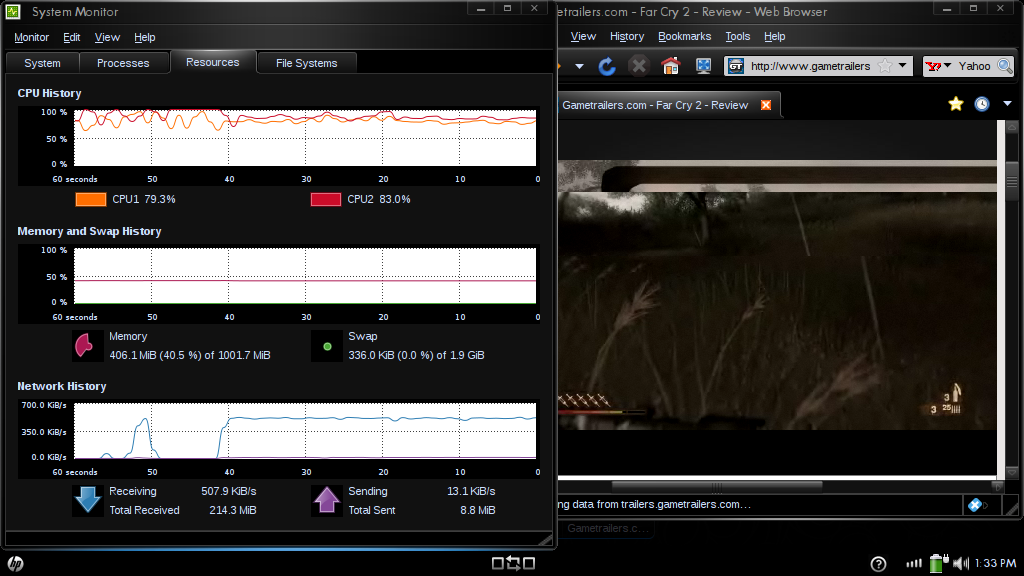
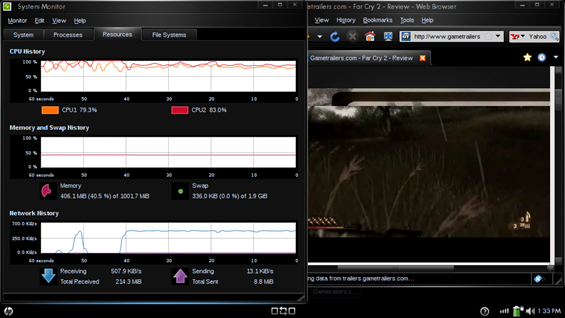
Video playback within a web browser usually isn’t considered a big deal on a desktop computer, but when working with the relatively small resources of a netbook, it can become a bit more serious of a task. In the screenshot above (click to enlarge) I showed the CPU usage graph while playing back a flash video from Gametrailers.com. This is SD footage. Flash HD video playback is too choppy for realistic viewing on the Mini 1000 MIE. I wouldn’t expect to be multi-tasking while listening to music through YouTube in the background. The CPU was around 80% usage during playback.


Boot Times


All tests are done with no apps open. Open apps will theoretically add a small amount of time to hibernate and standby.


 In (shutdown)Out (startup)
startup/shutdown16 seconds45 seconds
hibernate48 seconds42 seconds
standby5 seconds6 seconds


It is clear to see that standby is going to be your best option in most cases, offering a pretty quick 5-seconds into standby, and bringing you right back to your home screen in 6 seconds. Startup and shutdown times seem fairly normal, but something is a bit odd with the hibernation times on the Mini 1000 MIE. In general, going into hibernate should take about half as long as shutdown, or at least be equal in its speed. In the case of the Mini 1000 MIE, going into hibernation takes the longest of any of the boot options.


A few things could be causing this. Let’s quickly define the difference between hibernation and standby. As the computer enters standby, it keeps all of the important OS files, and any running applications in the RAM, and powers down to a very low-power state, using only enough power to keep the data on the RAM alive. This means that it consumes a little bit of power while it is in standby. Hibernation consumes no power because the RAM data is backed up to the HDD (in this case, an SSD), and the computer shuts down completely. When turning back on, the data is rewritten to the RAM from the HDD, and the unit returns to the same exact state that was saved when it went into hibernation. Now that we know a bit about standby vs. hibernate, let’s theorize. One potential cause of poor hibernation times is a bottleneck in communication between the RAM and the SSD. Another reason could be due to the way that Ubuntu handles hibernation.


Either way, it is clear that a full shutdown or standby are your best options. In my testing I’ve seen that the Mini 1000 MIE should provide 70 hours of standby time which is pretty good. Put your computer into standby and come back 7 hours later, and you’ll only be missing 10% of your battery life. Considering you are only 6 seconds away from a full computing experience, I’d say that is a pretty good deal.


Battery Life


The battery on the Mini 1000 MIE is pretty darn slim. Take a look at the photos above. The computer itself says that the 3-cell battery will power it for 2 hours and 35 minutes from a full charge. The netbook is good at delivering this amount of time while you are using the computer for web browsing. While not available just yet, a 6-cell battery should be available from HP in the near future. Keep an eye on their accessories page for availability.


Benchmarks


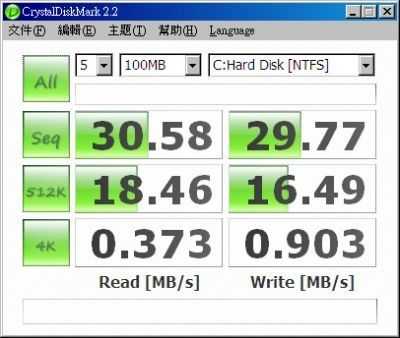
As I mentioned, the non-standard OS doesn’t allow us to run our usual benchmarking programs, but the XP flavored Mini 1000 has been benchmarked by others, I’ll drop the SSD benchmark below, but also swing by this page to see some additional ones.
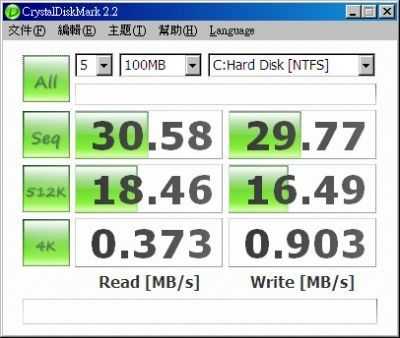

normal_hp_mini_1000_crystal


Check out the HP Mini 1000 MIE coverage roadmap for more coverage on this netbook.


2009年2月24日火曜日

My VAIO UX UMPC: Now open for experimentation; Suggestions?


It has been at least three years that I’ve owned my Sony VAIO UX180P, and I’ve been using it as my primary PC for a long time. As the internet continues to evolve, I’ve started to notice that my UX180…

ux


It has been at least three years that I’ve owned my Sony VAIO UX180P, and I’ve been using it as my primary PC for a long time. As the internet continues to evolve, I’ve started to notice that my UX180 is slowing down and slowly becoming less that optimal to function as a primary PC. I can’t believe how long it has lasted with only a 30GB HDD, 512MB of RAM, and a 1.2GHz Core Solo CPU. The components of this machine are crammed into an incredibly small package that still challenges the size of modern UMPCs (and the newer UX models are some of the highest performing UMPCs to date). My UX can definitely still hold its own as a fully functional PC, but as I said, it is becoming less than optimal as internet use becomes even more performance intensive. It isn’t uncommon these days to be streaming HD video over the web, be running a multi-tab web browser with several web apps open at once. All of this multi-tasking is starting to take a toll on my UX180’s mere 512MB of RAM, and the biggest concern was that I was quickly running out of storage space.


Recently I’ve switched over to a full sized desktop system. I was getting really irritated that I couldn’t find anything less important than photos to delete to make space for more stuff on my UX. So I adopted a desktop as my new main PC. Nothing fancy; a Dell machine that is a few years old with 1GB of RAM, 3.4GHz Pentium 4 with hyper-threading and an on-board graphics card (boring, I know). I also picked up a 1TB external HDD to be able to have long-lasting storage for all my media which is great.


Anyway, enough about all this ugly full sized computer stuff. The silver lining here is that my UX180 is not my primary computer any longer, and I don’t need it to be in 100% working condition all of the time in order to function. What I’m trying to say here, is that it’s time to experiment. I now how a relatively powerful handheld touchscreen computer that I can try lots of different stuff on, and I want your suggestions. Windows 7? Ubuntu? OSX? Who has some interesting ideas for me? I’ll probably be keeping this on the software side of things as I’m not a modding genius, like some people.


2009年2月23日月曜日

Weekly Netbook Roundup 2/23


It’s that time again. Lets have a look at some interesting netbook content from this week.


Asus to Phase Out 8.9 Inch Screens in 2009 — Asus started with the 7″ screen, moved up to 8.9″ and now seems to be on…

It’s that time again. Lets have a look at some interesting netbook content from this week.


UMPC Portal Mini 1000 MIE coverage on HP’s Mini 1000 site


HP has a mini flash-based site dedicated to the various versions of the Mini 1000 [Portal page]. There is a section dedicated to each edition (MI, XP, and Vivienne Tam). If you roll your mouse over the “Mini 1000 Mi…

mini 1000 mini site


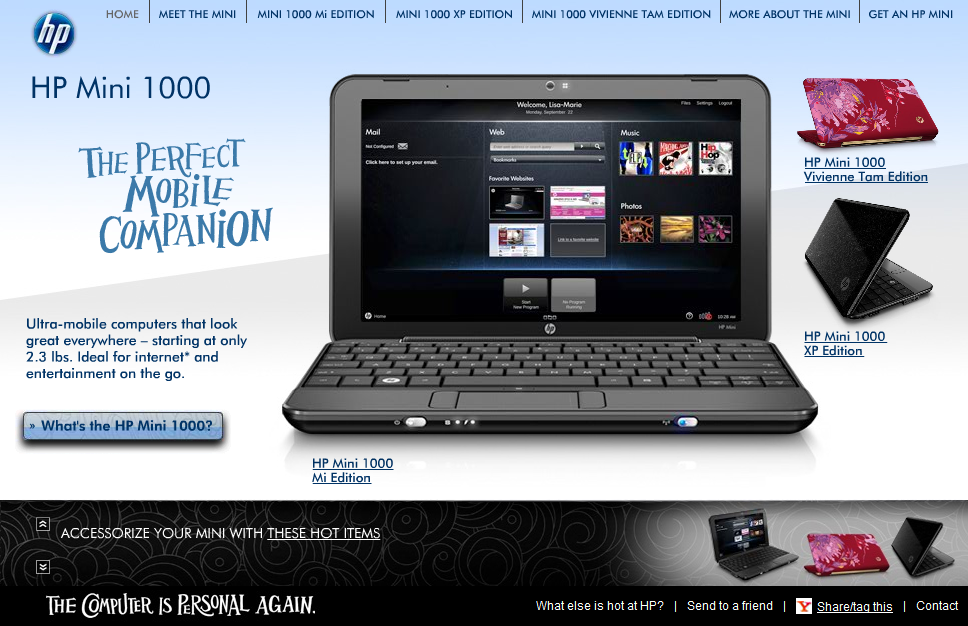
HP has a mini flash-based site dedicated to the various versions of the Mini 1000 [Portal page]. There is a section dedicated to each edition (MI, XP, and Vivienne Tam). If you roll your mouse over the “Mini 1000 Mi Edition” button and click “Read the Blogs“, you’ll see that the Mini 1000 MIE coverage from UMPC Portal is being aggregated on the mini site as well as some other sites that are testing out the Mini 1000 MIE. Check out content from several different sites to get an understanding of the device from several different angles.


See all of our Mini 1000 MIE coverage so far


Dell Inspiron Mini 10 product page now up in the Portal


We’ve added the Inspiron Mini 10 netbook to our comprehensive Product Portal as well as added a gallery of press shots. I’m looking forward to the Mini 10 and interested to see how it ranks on the Portal’s popularity charts.


Dell Inspiron Mini…

10


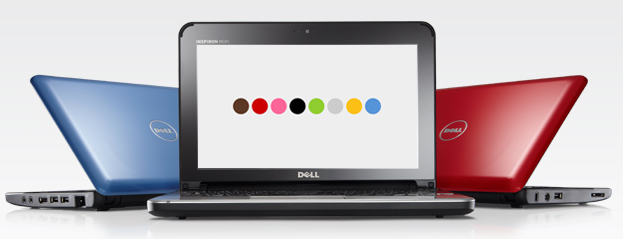
We’ve added the Inspiron Mini 10 netbook to our comprehensive Product Portal as well as added a gallery of press shots. I’m looking forward to the Mini 10 and interested to see how it ranks on the Portal’s popularity charts.


Dell Inspiron Mini 10 Portal page


Dell Inspiron Mini 10 gallery


Another rugged UMPC for the commercial sector


We might still be waiting to hear more news of the Side Arm 2 rugged UMPC, but in the mean time it seems like we have a different rugged UMPC to take a look at. Have a look at the…

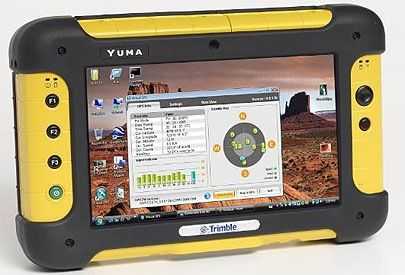
We might still be waiting to hear more news of the Side Arm 2 rugged UMPC, but in the mean time it seems like we have a different rugged UMPC to take a look at. Have a look at the Yuma rugged UMPC from Trimble.


yuma


  • 7″ sunlight-readable 1024×600 touchscreen display

  • 1.6GHz Intel Atom N270

  • Windows Vista

  • 32GB SSD

  • 802.11b/g WiFi and Bluetooth 2.0

  • GPS

  • dual-cameras

  • USB 2.0 port x 2

  • SDIO slot

  • ExpressCard slot


It seems to be a pretty large slate-UMPC (read: no keyboard) and weighs 2.6 pounds with the battery. Clearly this device is not for consumer wielding in the local coffee shop, but instead it is designed to stand up to some serious punishment and provide a mobile platform for commercial work. Here are some of the things that Trimble mentioned the device might be useful for while on-the-go:


  •  

    • Collect and exchange data – lots of data

    • Transfer data in real time

    • Run reports

    • Receive dispatch orders on the road

    • Take geo-tagged photographs

    • Initiate VOIP communications

    • Add secure memory for sensitive files

    • Send email

    • Write a report

    • Find your way out of the forest


[Rugged PC Reviews] via [GottaBeMobile]